How to Share a Gantt Chart: From Screenshots to Read-Only Links
Most schedule-sharing failures come from sharing all-or-nothing — roles (owner, pm, member, viewer) for people who edit, one read-only link for people who watch, and a table for choosing between them.
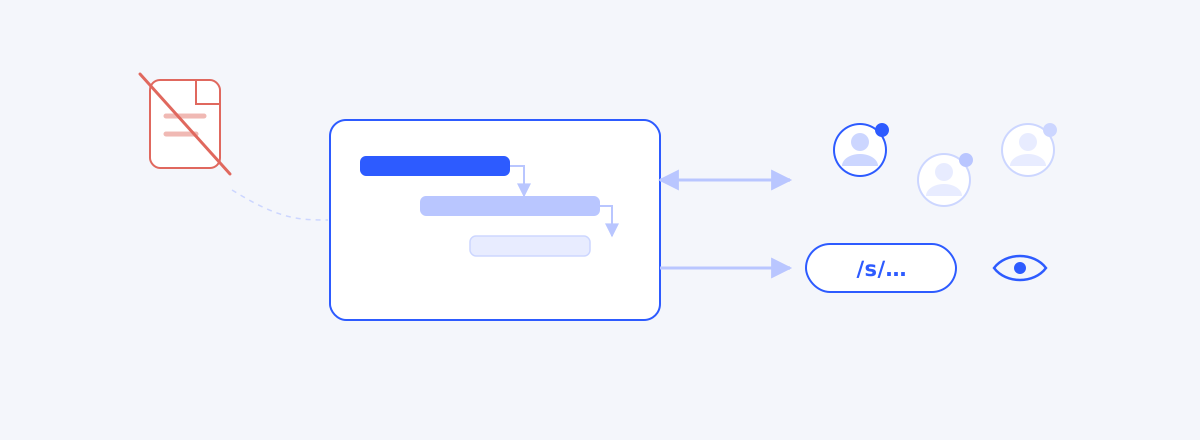
Most schedule-sharing failures come from sharing all-or-nothing. Screenshots and Excel attachments go stale the moment they are sent; an account invitation is overkill for someone who only needs to look. Sharing needs two different tools — roles for the people who edit, a single link for the people who watch. This guide starts where file sharing breaks down, splits the audience into two kinds, and matches each kind to its method — roles and invitations on one side, read-only links and their guardrails on the other — ending with a situation-by-situation table.
What Happens the Moment You Share a File
Capture the Gantt as a PDF, export to Excel, attach to an email — the most common way to share, and the fastest to rot. A file is a snapshot of the moment it was sent; by the next day it already disagrees with reality. A copy exists for every recipient, and someone walks into the meeting looking at last week's version. When "is this the latest one?" starts eating the first five minutes of every meeting, the sharing method is sick.
How file copies split one plan into several competing truths is covered in A Plan Made in Excel Starts Dying the Day It's Born. This guide is about the other direction — sharing without making copies.
The Audience Splits in Two
Before picking a method, split the audience. Only two kinds of people look at a project schedule. Participants change the plan — they create tasks, adjust durations, enter progress. Stakeholders watch the plan — clients, executives, adjacent teams: people who must know the state of things but must not touch them.
Failure comes from using one method for everyone. Invite everybody with an account and edit rights leak to people who only needed to look (over-permissioning); email everybody files and even the participants' copies drift apart (version splits). Different kinds need different tools.
Participants Get Roles
Participants join with accounts — but there is no reason everyone holds the same power. Four roles: owner (owns the project), pm (manages members and settings), member (edits work and progress), viewer (read-only). The principle is least privilege: only people who actually change the plan hold member or above; people inside the organization who just watch join as viewers.
Direction matters too. Raising a role later is easy; undoing the damage of an over-granted one is not. When in doubt, start low and raise when needed.
You Can Invite People Who Haven't Signed Up Yet
Building a plan often creates seats for people who don't have accounts yet — the contractor joining next month, the hire still in recruiting. Email invitations bridge that gap: invite the address, the invitation waits as pending, and the moment that person signs up they join the project automatically.
Use it to reserve seats at planning time instead of waiting for people to arrive. If an invitation went out wrong, cancel it — the cancellation is kept on record.
Stakeholders Get a Read-Only Link
Making stakeholders create accounts is usually too much. A read-only share link opens the schedule with a single URL, no account — one click and they see the WBS, the Gantt, and current progress.
The decisive difference from a file: the link points at the living schedule, not a copy. It is current every time it opens, so "is this the latest?" stops being a question. The Friday ritual of building a capture and emailing it gets replaced by sharing a link once — the principle that reports should be extracted, not authored, is covered in The PM Too Busy Reporting to Manage.
The Guardrails of Link Sharing
Be honest about the premise of link sharing: whoever knows the URL can look. Hence four guardrails.
First, a PIN — for sensitive projects, lock viewing so the URL alone doesn't open it. Second, an expiry date — when sharing is time-boxed, like an acceptance window, set a deadline and the link closes itself. Third, revocation — if a leak is suspected or the sharing is over, deactivate or delete the link and issue a new one if needed. Fourth, search-engine exclusion — the shared page is kept out of search indexing, closing the path where someone who doesn't know the link finds it by searching.
And there is one structural guardrail on top: the link is always read-only. Nobody can change the plan through a link, so even in the worst leak scenario the incident is something seen — never something changed.
Which Method for Whom
| Audience | Method |
|---|---|
| Team members (edit the plan) | Invite as member |
| Contractor doing the work (edits) | Invite as member — by email if not signed up yet |
| Standing internal watchers | Invite as viewer |
| Client acceptance review | Read-only link + PIN (+ expiry) |
| Executives, adjacent teams, weekly sharing | Read-only link |
| Contract or audit evidence (fixed point in time) | Excel snapshot — when freezing a moment is the goal, a file is the right tool |
The test is not affiliation but two questions: does this person change the plan (role), and until when do they need to see it (link, expiry). Whichever method you pick, the thing being shared is one computed schedule — how to build it is covered in How to Make a Gantt Chart.
Running It in a Tool
wbsgantt implements this guide's split directly. Participants join through the four roles — owner, pm, member, viewer — and email invitations for unregistered users auto-join on sign-up. The stakeholder-side read-only link supports a PIN (shown once at creation, so hand it over on the spot), an expiry date, deactivation and revocation; a view count hints at whether it's being read; and the page stays out of search engines. What's missing is explicit too — there are no editable links and no per-link granular permissions. If someone needs to change the plan, the design answer is to invite them as a member, not to hand them a link.
What to Read Next
The journey of building a schedule closed as a four-part series — dividing the work (the WBS guide), wiring the order (the dependency guide), computing the schedule (the Gantt guide), and the working-day calendar underneath. This guide is the fifth piece laid on top: opening the finished schedule to people. A plan becomes the team's the moment it is shared — and only a plan whose sharing was designed stays alive outside the meeting room.
Frequently asked questions
- What can someone with the share link actually see?
- The project schedule — WBS, Gantt, progress — read-only. No editing, commenting, or settings, and no account needed. It is the channel for people who must be able to look but must not be able to change: clients, executives, adjacent teams.
- What if the link leaks?
- Three layers of control. For sensitive projects, set a PIN from the start so the URL alone doesn't open it; when sharing is time-boxed, set an expiry date; if a leak is suspected, deactivate or revoke that link and issue a new one. The link is read-only, so in every scenario the incident is something seen — the plan itself cannot be changed.
- How is the viewer role different from a read-only link?
- A viewer is an account-holding member — identifiable, managed within the organization. A read-only link is an anonymous channel that opens without an account. The default split: standing internal watchers join as viewers; temporary external watchers get the link.
- What's the right method for contractors?
- If they edit the work directly, invite them as members — by email even before they sign up, and they'll auto-join. A contractor-side manager who only checks progress is well served by a read-only link. The test is not affiliation but "does this person change the plan."
- Is a link alone enough for client reporting?
- For weekly progress sharing, the link is better — always current, no report to assemble. But documents that must freeze a specific moment — acceptance sign-off, contract evidence — call for an Excel snapshot. Live state is the link's job; frozen moments are the file's. Two tools, two purposes.
Read next
 A Plan Made in Excel Starts Dying the Day It's BornWBS in one file, Gantt in another — two weeks later they disagree. Why plan artifacts and execution data belong in a single model.02
 The PM Too Busy Reporting to ManageThe PM spending 10 hours a week on reports — deliverables should be extracted, not authored.03
 This Week's Status Report Was Extracted, Not WrittenOne export button on the ERP project from our last case study produced four sheets — overview, WBS, weekly, monthly — and a clear boundary between what fills itself and what only a human should write.