WBS and Schedules in Excel: Where They Work, Where They Break
Excel is a reasonable place to start a WBS and schedule — the question is when to stop. The three points where a table and a schedule model part ways, when Excel is still the right call, and the signals that it is time to move.
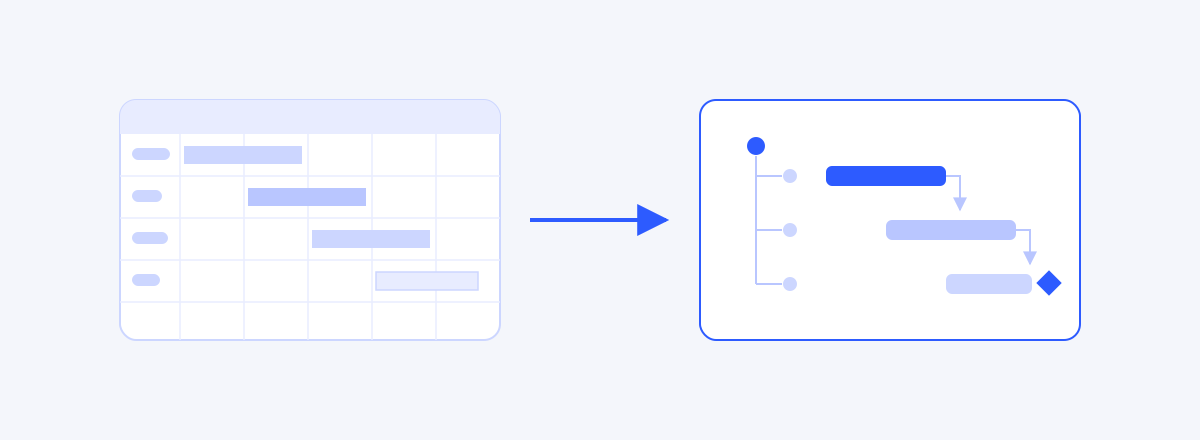
Building a WBS and schedule in Excel is entirely possible, and for many projects it is a reasonable place to start. The question is not the tool but the timing. A spreadsheet is a fine document for writing a plan down; it is not a model that computes and maintains one. This article starts with what Excel does well, walks through the three points where a table and a schedule model part ways, then covers the cases where Excel remains the right call — and the signals that it is time to move on.
Why Excel Is Always the First Tool
The reasons are simple. It is already on everyone's machine, everyone knows how to use it, and it can become any form you need in minutes. Add rows and you have a task list; add columns and you have weeks; color a few cells and you have something that looks like a Gantt chart. No procurement, no approvals, no training.
At the drafting stage, few tools can match it. You write things down as they come, delete freely, and restructure three times without resistance. We build a scheduling tool, and we still do our first brainstorming on paper or in a spreadsheet more often than not. In a phase that demands flexibility, flexibility is a virtue.
A Table and a Schedule Model Are Different Things
The split begins the moment a plan goes from being written down to being managed. A table shows the values in its cells; it knows nothing about the relationships between them. The fact that development cannot start until design is done lives in the head of whoever made the table — not in the table.
A schedule model works the other way around: relationships are the source of truth. Enter durations and the order of work (dependencies), and the dates are computed. When a predecessor slips three days, its successors move with it. In a table, a person has to remember those three days and hand-edit dozens of rows below.
Limit One: Structure Trapped in Cells
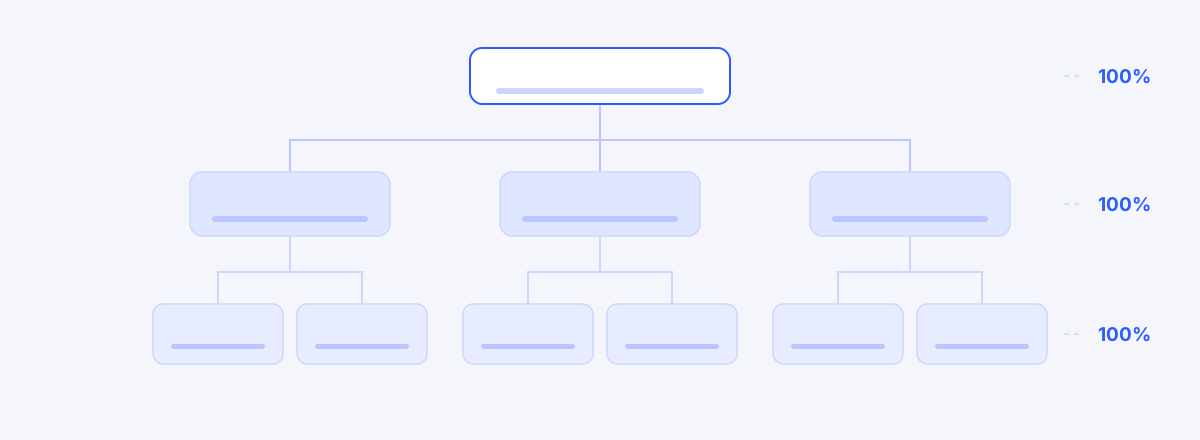
A WBS is not an indented list — it is a decomposition you can verify. Does the whole scope split into children with nothing left over (the 100% Rule)? Does any piece of work appear in two places? Being able to answer those questions is what makes the floor of a plan solid. We covered how to do the decomposition in How to Create a WBS: 5 Steps.
In Excel, hierarchy is indentation and merged cells. It looks like a tree, but all the tool knows is how many levels deep a cell sits. Drop a child item, or write the same work under two phases, and there is no warning. Move a row and let the indentation slip one level, and the structure silently changes. Every check hangs on human eyes.
Limit Two: Dates That Are Not Computed
With good formulas, Excel can compute dates. WORKDAY skips weekends; a start date plus a duration gives a finish. But dependencies between tasks, the latest-of-all-predecessors logic, the critical path that decides the whole schedule, and a holiday calendar that differs per project — maintaining all of that in formulas amounts to developing a second piece of software.
So most Excel schedules give up on computation and type the dates in. From that moment, the table cannot answer the question "if this slips, how much does that slip?" A delay has happened, but the schedule still looks fine — the most dangerous state a plan can be in.
Limit Three: Two Files Telling Different Stories
A plan is not a private document. Team members record progress, clients ask for the latest version, the PM builds reports. File-based planning tends to end in the same place: schedule_final_v7_client.xlsx exists in slightly different versions in every mailbox, and meetings open with figuring out which file is real.
We dissected this failure mode in A Plan Made in Excel Starts Dying the Day It's Born. The short version: a document starts drifting from reality the moment it is created, and once updating costs more than authoring did, nobody updates it.
When Excel Is Still the Right Call
For balance, let us be clear about the opposite case. In these situations Excel is enough, and adopting a dedicated tool would be overkill.
- A one-off project with around twenty tasks and a horizon of a few weeks
- Work with almost no dependencies, where the order is self-evident
- A plan that rarely changes once made
- A plan whose only consumer is you
And regardless of scale, Excel remains the standard as a reporting format. Clients and executives want an Excel file, and that is unlikely to change. We went as far as running an experiment exporting a scheduling tool's plan to Excel reports. The problem was never Excel as a format — it is Excel as the single source of truth for a living plan.
The Signals That It Is Time to Move
The moment to switch shows up as symptoms, not as a tool preference.
- You spend two or three hours a week updating the schedule — updating now costs more than authoring did
- "What was the original plan?" sends you digging through files — there is no baseline
- The WBS document and the schedule document disagree — there are two sources of truth
- A predecessor slipped but the successor dates did not move — delays are hiding
- Meetings open with "which version is current?" — version management has become a risk
Use it as a checklist. Two or more, and your plan is probably being squeezed by the limits of its container.
Documents vs. Models: A Comparison
| Aspect | Spreadsheet (document) | Scheduling tool (model) |
|---|---|---|
| What the plan is | A table of typed-in values | A model computed from relationships |
| Structure checks | Human eyes | Enforced (hierarchy, 100% Rule) |
| Dates | Entered and fixed by hand | Computed from dependencies and calendars |
| Propagating change | Manual (easy to miss) | Automatic recalculation |
| Plan vs. original | Managing file copies | Baseline snapshots |
| Collaboration | Passing files around | Single source, shared viewing |
| Learning curve | None | Real (varies by tool) |
| Best phase | Drafts, small work, one-off reports | Execution, control, multi-person work |
The right column is not always the answer. "No learning curve" and total flexibility are serious advantages in practice, and if you are in the drafting phase, the left column wins.
Other Tools Worth a Look
If you have decided to move to a dedicated tool, the field is wide, and each option optimizes for something different.
- Google Sheets — a table that solves Excel's co-editing problem. Still a table at heart.
- MS Project — the long-standing standard for desktop scheduling, with deep CPM and resource features. How to choose gets its own article next.
- Smartsheet, Asana, Monday and peers — collaboration-first work management; more about workflow than schedule computation.
- wbsgantt — the tool we build. The WBS tree is the source of truth, and the Gantt, CPM, working-day calendars, and baselines derive from it — aimed squarely at the document-to-model transition this article describes. And for the moments you still need Excel, report export is built in.
Either way, judge by the symptoms your plan is showing, not by feature lists. Start from the signals above and you will avoid both buying too much tool and switching too late.
Frequently asked questions
- Can I build a Gantt chart in Excel?
- Yes. Drawing bars with conditional formatting or colored cells is a well-worn technique, and for a draft or a one-off report it is enough. But those bars are pictures that know nothing about dependencies — when a predecessor slips, the bars downstream do not move. If you update weekly and steer execution with it, you need a Gantt that is computed.
- Is a free Excel WBS template a good way to start?
- It is a fine starting point — a template gives you form and order quickly. Just remember that what it provides is format, not verification. Whether the decomposition covers everything with nothing left over (the 100% Rule), and whether the same work appears in two places, still has to be checked by a person.
- When should I move from Excel to a dedicated tool?
- Judge by symptoms. If you spend hours each week updating the schedule, have to dig through files to find the original plan, or keep seeing predecessors slip while successor dates stay put, the moment has arrived. Conversely, for a one-off project of around twenty tasks, Excel is enough.
- If I switch tools, do I abandon Excel completely?
- No. What moves is one thing: the plan's source of truth. As a reporting and data-exchange format, Excel stays. A good scheduling tool accepts this reality and builds in Excel export. Keep the model as the source and generate documents when you need them — that is the arrangement that matches practice.
- My team only knows Excel. Is switching not a burden?
- The switching cost is real, so it is fair to acknowledge it. But not everyone has to learn a new tool. In most teams one person — the PM — edits the plan; everyone else views it and records progress. Start with one editor moving over while the team follows through a shared link, and the burden shrinks considerably.
Read next
 A Plan Made in Excel Starts Dying the Day It's BornWBS in one file, Gantt in another — two weeks later they disagree. Why plan artifacts and execution data belong in a single model.02
 This Week's Status Report Was Extracted, Not WrittenOne export button on the ERP project from our last case study produced four sheets — overview, WBS, weekly, monthly — and a clear boundary between what fills itself and what only a human should write.03
 How to Create a WBS: 5 Steps from the 100% Rule to 8/80Build a WBS in five steps — start from the deliverable, decompose with the 100% Rule, size with 8/80, and de-duplicate with mutual exclusivity. Includes a 30-minute completeness checklist.